Dev License: This installation of WHMCS is running under a Development License and is not authorized to be used for production use. Please report any cases of abuse to abuse@whmcs.com

How to Check VPS Specifications and Virtualization Info in Virtualizor

You can check VPS specifications such as RAM, disk space, virtualization, IP Address, etc., from the Virtualizor Control Panel.

1. Log in to your Virtualizor Control Panel.

2. From the left side panel, click on List VPS.

virtualizor-list-vps-menu.gif

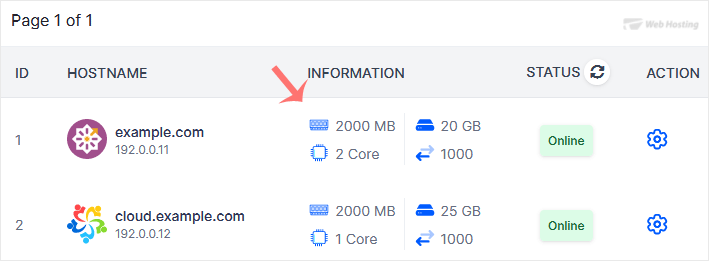
3. Under Information you can see the allocated RAM, CPU cores, disk space, and bandwidth of your VPS.
virtualizor-check-details-of-vps.gif

4. To check the resource usage details of the VPS, click on the Wrench Icon next to the VPS.

virtualizor-click-manage-vps.gif

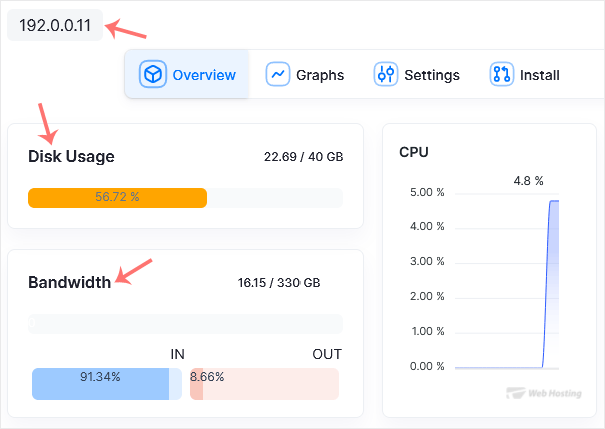
5. On the Management page, you can find the VPS IP, disk usage, bandwidth, and other details.
virtualizor-vps-full-details.gif

Hope this tutorial is helpful to you.

  • 0 A felhasználók hasznosnak találták ezt
Hasznosnak találta ezt a választ?

Kapcsolódó cikkek

How to Log in to Virtualizor Control Panel

You can find the Control Panel URL, username and password in your VPS welcome email. Virtualizor...

How to Check VPS Online or Offline Status in Virtualizor

Do you want to check your Virtualizor VPS status and determine whether the VPS is offline or...

How to Change Your Virtualizor Account Password

If you can access your Virtualizor VPS control panel, you can easily change your Virtualizor...

Powered by WHMCompleteSolution